
Smartphones have become an essential part of our daily lives, but continuous notifications, calls, messages, and social media alerts can sometimes become distracting. Whether you are working, attending an important meeting, or preparing to sleep, unnecessary smartphone interruptions can affect your concentration and daily routine.
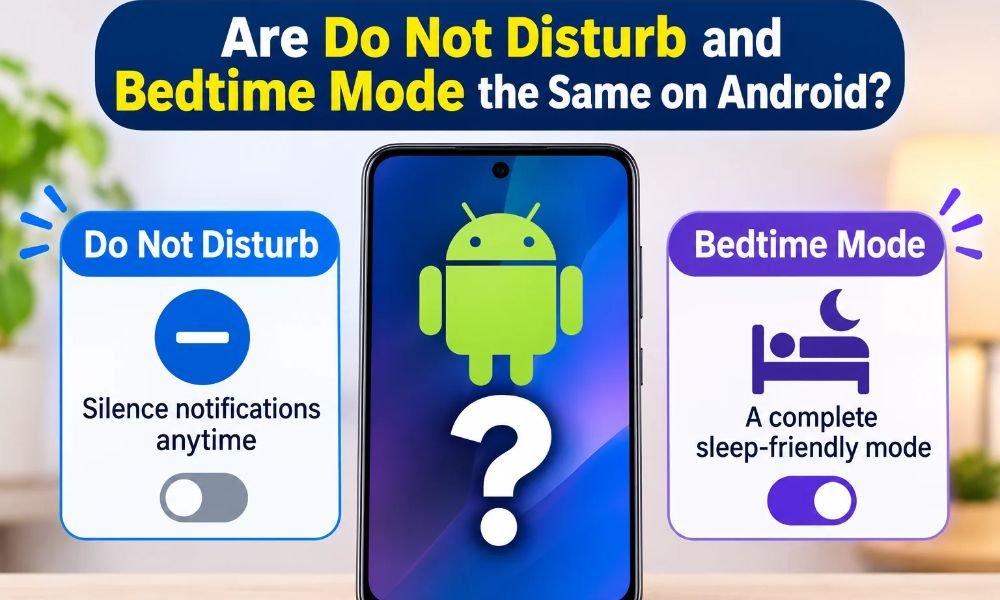
To manage these distractions, Android offers two useful features: Do Not Disturb (DND) and Bedtime Mode. Both features help reduce interruptions, but they are not exactly the same.
Many users think that enabling Do Not Disturb is enough to avoid nighttime distractions. However, Bedtime Mode via Digital Wellbeing or the Clock app offers additional sleep-focused settings that can automatically change your smartphone’s display and notification preferences according to your sleeping schedule.
The main difference is that Do Not Disturb is a general notification-silencing feature, whereas Bedtime Mode is designed to create a more peaceful nighttime environment.
The main disadvantage of Do Not Disturb mode is that your phone may still vibrate when you receive notifications, depending on your settings. If you enable this mode while sleeping, the vibrations may disturb your sleep. In this case, Bedtime Mode offers a better experience because it provides additional sleep-focused settings to minimize distractions.
For example, if you are attending a meeting and don’t want incoming calls or notifications to disturb you, Do Not Disturb is a suitable option. However, if you want to maintain a consistent sleeping schedule, relaxation and reduce smartphone distractions before bedtime, Bedtime Mode is more useful.
Let’s understand how both features work, their similarities, major differences, and when you should use each one.
What Is Do Not Disturb Mode on Android?
Do Not Disturb is a built-in Android feature that helps users silence unnecessary notifications, incoming calls, and alerts for a selected period. This feature is available on almost all smartphones, including Samsung Galaxy, Google Pixel, Motorola, OnePlus, Xiaomi, Oppo, and Apple iPhones. It is also supported by most smartwatches, as well as Windows and Mac laptops.
It is particularly useful when you don’t want your smartphone to interrupt you during important activities. For example, imagine that you are attending an online meeting, studying for an examination, or completing an important task and many more important activities. Continuous notifications from WhatsApp, Instagram, emails, messages and other applications can interrupt your concentration.
Instead of manually silencing every application, you can enable Do Not Disturb and prevent most unwanted interruptions or disturbance.
What Does Do Not Disturb Do?
Do Not Disturb offers several options to manage notifications and incoming calls.
1. Silence Notifications
Once enabled, Do Not Disturb can silence notifications from applications such as social media, messaging platforms, and other services. You can still receive notifications, but their sounds and vibrations are controlled according to your settings.
2. Manage Incoming Calls
You can customize which calls are allowed while Do Not Disturb is enabled. For example, you can allow calls from starred contacts, selected people, or other permitted groups, depending on your Android version.
3. Allow Important Alarms
Do Not Disturb settings can allow alarms and selected system notifications to work normally. This means you don’t necessarily have to worry about missing your morning alarm when using the feature overnight.
4. Schedule Do Not Disturb
Another useful function is automatic scheduling. You can choose specific days and times when Do Not Disturb should activate automatically. For example, if you attend meetings every weekday between 11 AM and 12 AM, you can create a schedule to avoid unnecessary interruptions during those hours.
5. Control Application Notifications
Depending on your Android version, you can customize which applications or notification categories are allowed to interrupt you. This gives you more control over your smartphone notifications.
What Is Bedtime Mode on Android?
Bedtime Mode is a Digital Wellbeing feature designed to help users reduce smartphone distractions before sleeping. Unlike Do Not Disturb, which mainly focuses on silencing notifications, Bedtime Mode combines notification controls with additional sleep-focused display settings. It can automatically adjust your smartphone according to your selected bedtime schedule.
For example, if you usually sleep at 10 PM and wake up at 7 AM, you can configure Bedtime Mode to activate and deactivate during those hours. Depending on your device and Android version, it can perform several functions:
- Enable Do Not Disturb: Silence unnecessary notifications during sleeping hours.
- Activate grayscale: Change your colourful smartphone display into black and white.
- Dim the screen: Reduce visual distractions when using your smartphone at night.
- Enable dark themes: Use supported dark display settings.
- Follow a sleep schedule: Automatically activate the feature at your preferred bedtime.
- Wind Down: On supported devices, you can use additional settings to prepare for sleeping.
One important thing to understand is that Bedtime Mode does not switch off your smartphone. You can still use applications, browse the internet, and make calls.
Its primary purpose is to encourage healthier smartphone habits and reduce unnecessary nighttime interactions.
Do Not Disturb vs Bedtime Mode: What Are the Similarities?
Although these features have different purposes, they share some important functionalities.
Let’s understand their similarities.
1. Both Reduce Notification Distractions
The biggest similarity is that both features help prevent unnecessary smartphone interruptions. Do Not Disturb silences notifications according to your selected preferences, while Bedtime Mode can activate Do Not Disturb automatically during sleeping hours. This makes both features useful when you want to avoid continuous alerts.
2. Both Support Scheduling
You don’t need to enable these features manually every time. Both Do Not Disturb and Bedtime Mode offer scheduling options on supported Android devices. With Bedtime Mode, you don’t need to repeat the setup process every day.
Once configured, your preferred settings remain active automatically until you decide to change them. For example, you can schedule Do Not Disturb during your working hours and Bedtime Mode during your sleeping hours.
3. Both Allow Important Exceptions
Another similarity is that both features can allow selected notifications or calls. For example, you may want to silence social media notifications while allowing calls from family members. You can customize these exceptions through the notification and Do Not Disturb settings available on your smartphone.
4. Both Keep Your Smartphone Operational
Neither feature normally switches off your smartphone. Your device remains connected to the internet, and you can continue using applications, browsing websites, and making calls.
The main difference is how they manage notifications and other settings.
Do Not Disturb vs Bedtime Mode: 7 Major Differences
Although both features help reduce distractions, their functionality is not identical.
| Features | Do Not Disturb | Bedtime Mode |
|---|---|---|
| Main purpose | Silence notifications and alerts | Create a sleep-friendly environment |
| Notifications | Silences selected alerts | Can activate Do Not Disturb |
| Grayscale display | Not a standard built-in function | Available on supported devices |
| Screen dimming | Not its primary function | Available through bedtime settings |
| Scheduling | Yes | Yes |
| Important calls | Can allow selected contacts | Uses Do Not Disturb exceptions |
| Best use | Meetings, work, studying, and focus | Nighttime routine and sleep preparation |
How to Set Up and Use Android Bedtime Mode for Better Sleep | Beebom Gadgets
1. Main Purpose
The first major difference is their primary purpose. Do Not Disturb is a general feature that helps you avoid unnecessary notifications during different activities.
You can use it while working, attending meetings, studying, travelling, or sleeping. It is a great option for people who have busy work schedules and want to manage their sleep routine without distractions.
On the other hand, Bedtime Mode focuses on your nighttime routine. It helps you reduce distractions and prepare for sleep by combining notification controls with additional display settings.
2. Screen Display and Grayscale
Do Not Disturb mainly focuses on controlling notifications rather than changing the appearance of your smartphone display. Bedtime Mode offers additional visual settings.
For example, you can enable grayscale to change your colourful display into black and white. This may make applications and social media content less visually engaging, encouraging you to spend less time scrolling before sleeping. Depending on your device, you can also enable dim screen options.
3. Notification Management
Both features help manage unwanted notifications, but their implementation is slightly different. Do Not Disturb allows you to control notifications and incoming calls according to your preferences.
Bedtime Mode can automatically enable Do Not Disturb when your sleeping schedule begins. This means you don’t need to activate Do Not Disturb separately every night if you have configured Bedtime Mode correctly.
4. Scheduling and Automation
Both features support scheduling, but they are designed for different situations. For example, you can schedule Do Not Disturb from 9 AM to 10 AM when attending a regular meeting.
Similarly, you can schedule Bedtime Mode from 10 PM to 7 AM to reduce distractions during sleeping hours. Bedtime Mode can also automatically apply your selected sleep-focused display settings.
5. Additional Sleep-Focused Features
Do Not Disturb is mainly designed to silence alerts and notifications. Bedtime Mode offers additional options that can help you create a comfortable nighttime smartphone experience.
Depending on your device, these include grayscale, dimming, and other Digital Wellbeing settings. These features may help reduce the temptation to continue using your phone before sleeping.
6. Flexibility and Everyday Usage
Do Not Disturb is more flexible for everyday activities because you can use it whenever you want to avoid interruptions. For example, you can enable it during meetings, examinations, office work, or personal time.
Bedtime Mode is more suitable for users who want to follow a regular sleeping schedule. However, you can still customize its activation schedule according to your lifestyle.
7. Battery Consumption
Neither feature is primarily designed to save battery power. Do Not Disturb controls notification interruptions without switching off your smartphone. Bedtime Mode also keeps your device operational while adjusting selected display and notification settings.
Although dimming the display or using dark themes may reduce power consumption in certain situations, neither feature works like a dedicated battery-saving mode.
How to Enable Do Not Disturb on Android?
Follow these steps to enable Do Not Disturb:
- Open the Settings app on your Android smartphone.
- Select Sound and vibration or Notifications.
- Find the Do Not Disturb option.
- Enable Do Not Disturb.
- Customise allowed calls, messages, alarms, and application notifications according to your preference.
- Set a schedule if you want it to activate automatically.
- You can also access Do Not Disturb through the Quick Settings panel on many Android smartphones.
How to Enable Bedtime Mode on Android?
If you want to reduce distractions during sleeping hours, follow these steps:
- Open Settings on your Android smartphone.
- Select Digital Wellbeing and parental controls.
- Find and open Bedtime Mode.
- Select your preferred bedtime and wake-up schedule.
- Enable options such as Do Not Disturb and grayscale, if available.
- Save your settings.
- Once configured, your smartphone can automatically activate Bedtime Mode according to your selected schedule.
- You can also explore the Google Clock app on supported devices to configure bedtime and wake-up routines.
Can You Use Do Not Disturb and Bedtime Mode Together?
Yes, You can use both features as part of your daily smartphone routine. In fact, Bedtime Mode can automatically activate Do Not Disturb when your sleeping schedule begins. For example, imagine that you work from 9 AM to 6 PM and usually sleep at 10 PM.
You can configure Do Not Disturb during important meetings or working hours and schedule Bedtime Mode for nighttime. This allows you to manage distractions throughout the day without manually changing your smartphone settings every time.
However, remember that Bedtime Mode may already control Do Not Disturb during its scheduled hours. You should check your device settings to avoid conflicting schedules.
Final Verdict
Both features are useful, but choosing the right one depends on your requirements. If you want to silence notifications during meetings, working hours, studying, or other important activities, Do Not Disturb is the better option.
However, if your main intention is to reduce smartphone distractions before sleeping, Bedtime Mode offers additional sleep-focused settings, including grayscale, dimming, and automatic scheduling on supported devices.
Our recommendation is to use Do Not Disturb for everyday focus and Bedtime Mode for your nighttime routine. Remember, Bedtime Mode does not guarantee better sleep. It ultimately depends on your habits and lifestyle. However, it can help you develop healthier smartphone habits by reducing unnecessary interruptions, notifications, and visual distractions.
FAQs
1. Is Do Not Disturb the same as Bedtime Mode?
No Both features can silence notifications, but their purposes are different. Do Not Disturb is a general notification-control feature, whereas Bedtime Mode combines notification management with additional sleep-focused settings.
2. Does Bedtime Mode automatically enable Do Not Disturb?
Yes, Bedtime Mode can enable Do Not Disturb automatically on supported Android devices. You can configure this option through Digital Wellbeing settings.
3. Can I receive calls while Do Not Disturb is enabled?
Yes. You can customise Do Not Disturb exceptions to allow calls from selected contacts, starred contacts, or other permitted groups, depending on your Android version.
4. Does Do Not Disturb change the screen to grayscale?
No. Grayscale is not a standard Do Not Disturb function. It is available as an additional option through Bedtime Mode on supported Android devices.
5. Which is better for sleeping, Do Not Disturb or Bedtime Mode?
Bedtime Mode is generally more suitable because it combines notification controls with additional nighttime display settings. However, Do Not Disturb is also useful if you only want to silence notifications without changing other smartphone settings.