
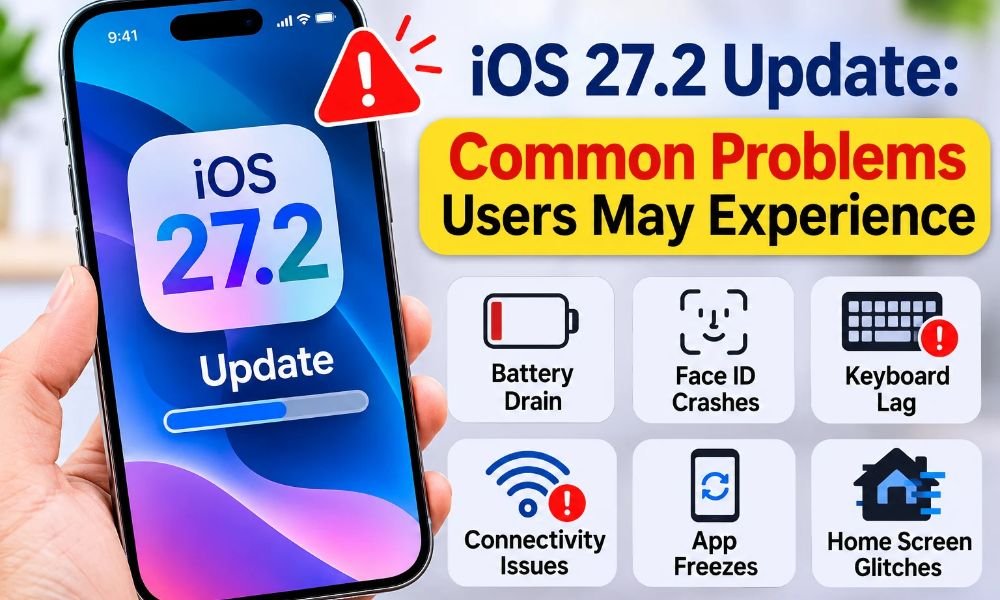
Apple regularly releases iOS updates to improve performance, advance Siri Expand, introduce many new AI features , and address security vulnerabilities. However, not every update delivers a smooth experience. Following the release of iOS 27 and iOS 27.2 Every software update brings new advancements and improvements, but it can also introduce unexpected bugs and performance issues. Several iPhone users have reported problems affecting everyday activities, including making calls, sending messages, using the camera, and connecting wireless accessories.
Bugs and errors are common occurrences with every software update. You may have noticed that the iOS 26.6.1 update has several bugs. However, software issues are not limited to iOS updates; Android updates, including One UI 8.5, can also introduce bugs and performance problems. Let’s look at the common issues users face after installing these updates.
The most common iOS 27.2 issues include battery drain, overheating, Face ID failures, keyboard lag, Home Screen glitches, cellular connectivity problems, and unexpected app freezes. Some users have also experienced problems with AirPlay and Bluetooth connections, while others have reported that they have lost the ability to text or email photos from their camera.
These problems have appeared across Apple Support discussions and online user communities, including Reddit and many more. However, not every reported issue affects all iPhone models, and some problems may be related to individual apps, network configurations, or post-update background activity. However, these issues do not affect every user. Most users are satisfied with the update and have not reported any major problems.
Let’s look at the major iOS 27.2 bugs, why they might occur, and what you can do to fix them.
Check out the Major Bugs Reported in iOS 27.2
1. Battery Drain and Overheating Problems
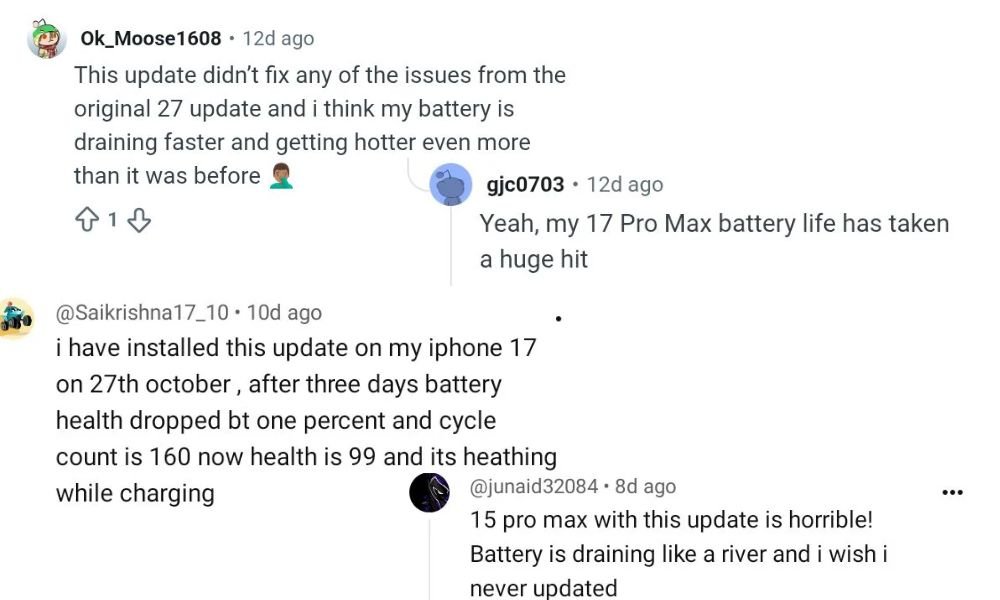
Battery drain is one of the most common complaints after installing a major iOS update. Some iPhone users notice that their battery percentage drops faster than usual, even when they are not actively using their devices. Many users have reported not only battery drain but also overheating issues.
Overheating is another concern, particularly when using resource-intensive applications, playing games, recording videos, or charging the iPhone. However, Apple explains that some temporary battery and temperature changes can occur after installing an update because the device continues performing background activities, such as indexing files, updating apps, and organizing photos.
If you experience these problems, give your iPhone a few days to complete its background activities. You should also check battery usage to identify applications consuming excessive power.
2. Face ID Failures and Unexpected Restarts
Face ID is an important security feature that allows users to unlock their iPhones, authorize payments, and access supported applications. Unfortunately, some users have reported Face ID recognition failures and unexpected device restarts after updating to iOS 27.
These complaints are particularly concerning for owners of newer iPhone models, including the iPhone 18 Pro and iPhone 18 Pro Max. Some reports describe Face ID becoming temporarily unavailable, failing to recognize the user’s face, or requiring repeated attempts to unlock the device.
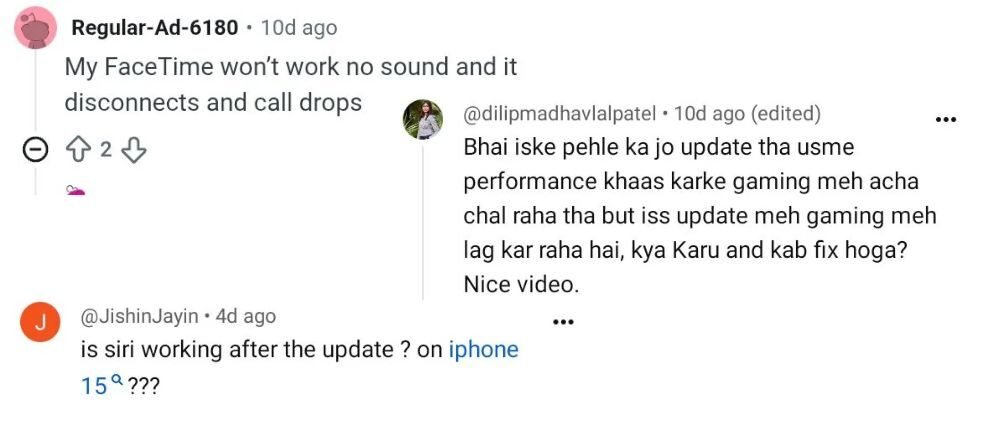
Apple has addressed certain software problems through subsequent maintenance updates, including iOS 27.0.1. However, users should check the official release notes before assuming that a particular Face ID issue has been fixed. Along with these issues, some users have reported that FaceTime does not work properly, disconnects frequently, or drops calls. Others have experienced lag during gaming, while many users are confused about whether Siri is working properly after the update.
If Face ID stops working, try restarting your iPhone and checking whether a newer software update is available. You can also reset Face ID and configure it again if the problem continues.
3. Keyboard Lag and Delayed Typing Responses
Another frustrating problem reported by iOS 27.2 users is keyboard lag. When typing messages, searching the internet, or writing emails, the keyboard may respond slowly. Some users have also reported contact search glitches, crackling audio through the speakers, and unexpected restarts occurring every few minutes. These problems have caused frustration among users after installing the iOS 27.2 update.
For example, you might press a letter and notice a delay before it appears on the screen. Some users also report delayed keyboard haptics, missed key presses, and unexpected typing interruptions.
This issue can affect everyday communication, especially when you frequently use Messages, WhatsApp, or other messaging applications. To troubleshoot keyboard problems, try restarting your iPhone, updating your installed applications, and checking whether the issue occurs in multiple apps or only one particular application.
4. Home Screen Glitches and Animation Problems

The Home Screen is another area where users have reported visual problems after installing iOS 27.2. Along with Home Screen problems, many users have also reported green, black, and white screen issues. These display problems are a major concern, especially during phone calls. Some users have also experienced severe lag when opening and using apps from the Home Screen.
Some of the reported glitches include:
- Stuttering Home Screen animations.
- Blank folders or application icons.
- Icons flashing unexpectedly.
- Dynamic Island visual inconsistencies.
- Widgets flickering or failing to refresh.
- Delayed responses when switching between applications.
These problems can make the iPhone feel less responsive, even when its processor and overall performance are working normally. If you experience these glitches, restart your device and check whether the affected applications or widgets have pending updates. You can also remove and re-add problematic widgets.
5. Auto-Brightness Not Working Properly
Auto-brightness is designed to adjust your display according to the surrounding lighting conditions. However, some users have reported that their iPhone screens remain too dim or become unnecessarily bright after updating.
This can affect visibility when using the phone outdoors or in dark environments. The issue has been mentioned in connection with certain iPhone models, including the iPhone 15 Pro.
You can check the Auto-Brightness setting under Settings > Accessibility > Display & Text Size. Make sure the feature is enabled and that the ambient light sensor is not covered by a screen protector, case, or other obstruction.
6. Cellular Connectivity and eSIM Problems
Cellular connectivity is essential for making calls, sending text messages, and accessing mobile internet. Unfortunately, some users have reported mobile data interruptions, dropped calls, and eSIM-related problems after installing iOS 27.
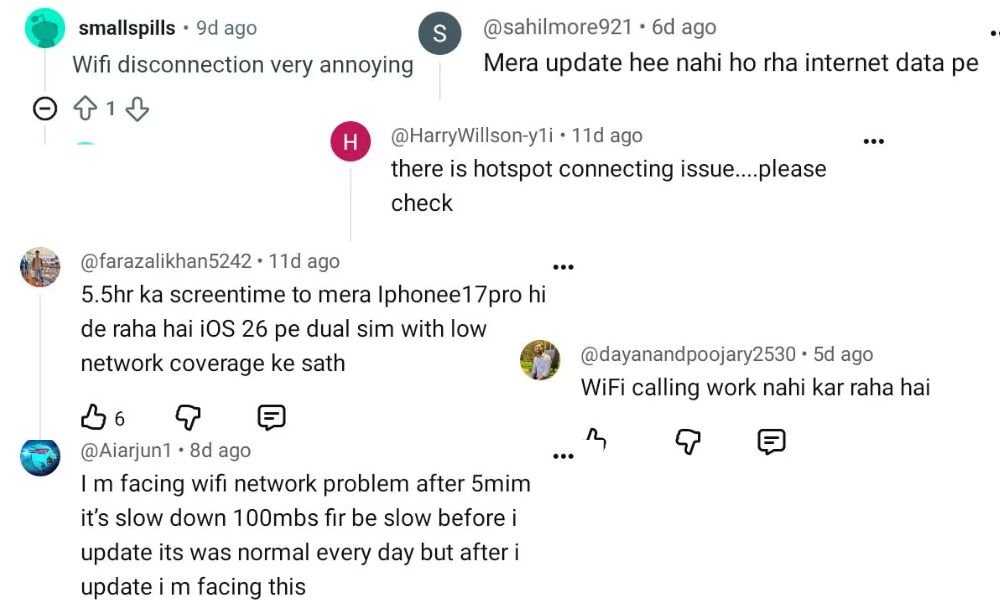
For numerous users, connectivity problems can become particularly frustrating because they affect several essential smartphone functions simultaneously. Some reports also mention network service drops on newer iPhone models and difficulties maintaining a stable cellular connection. Most of the reported problems are related to network connectivity.
Users have experienced issues such as Wi-Fi not connecting properly, software updates failing over mobile data, and difficulties connecting to personal hotspots. These connectivity issues are among the most frustrating problems users may encounter after updating to iOS 27.2.
If your iPhone loses its network connection, try enabling and disabling Airplane Mode. You can also restart your device and check for carrier settings updates. If the problem continues, contact your mobile network provider to confirm whether the issue is related to your carrier or iPhone software.
7. AirPlay and Bluetooth Connection Problems
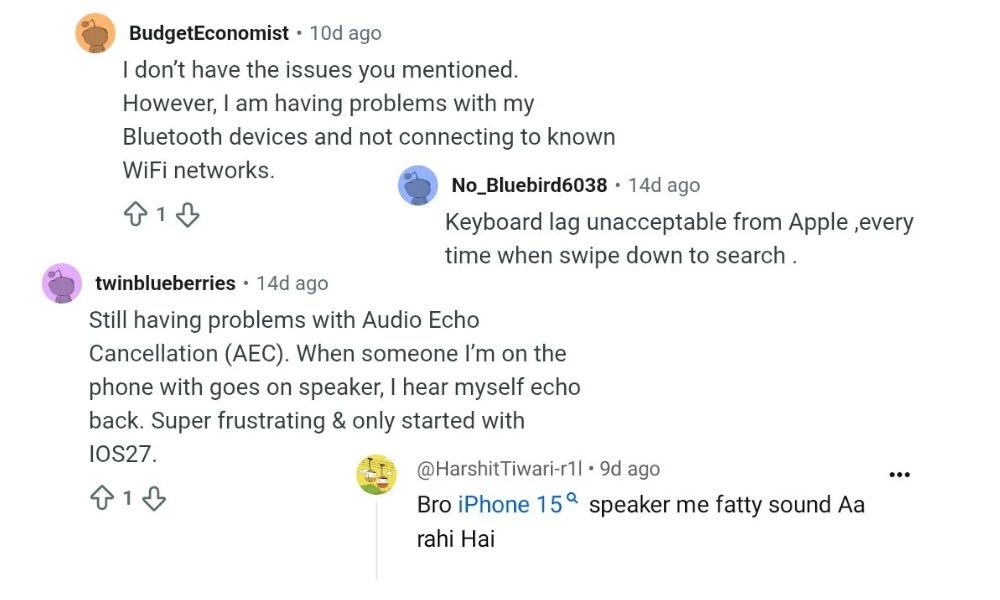
AirPlay and Bluetooth are important features for connecting your iPhone to other devices. AirPlay allows you to stream supported content to compatible televisions and speakers, while Bluetooth connects wireless headphones, speakers, keyboards, and other accessories.
However, some users have reported connection problems after updating to iOS 27.2. Users have also reported Bluetooth connectivity issues, with some devices failing to connect properly. Additionally, audio problems such as echoing sounds and speaker malfunctions have become frustrating concerns for many users.
For example, AirPlay may fail to detect a compatible television, audio streaming may disconnect unexpectedly, or Bluetooth accessories may struggle to maintain a stable connection.
These problems can affect users who regularly stream music, watch videos, or connect wireless accessories.
Try the following troubleshooting steps:
- Turn Bluetooth off and on again.
- Restart your iPhone and the connected accessory.
- Forget the Bluetooth device and pair it again.
- Ensure both AirPlay devices are connected to the appropriate Wi-Fi network.
- Check whether the connected television or speaker has a pending software update.
If these steps do not resolve the problem, check whether Apple has released another maintenance update.
8. Unable to Text or Email Photos From the Camera
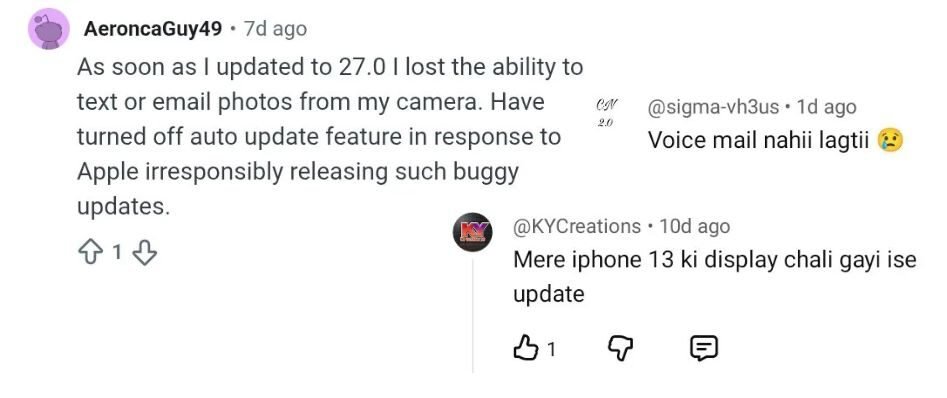
One particularly frustrating complaint involves photo-sharing functionality. Some iPhone users have reported that they have lost the ability to text or email photos from their camera after updating their devices. Some users have reported losing text messages, email attachments, and photos. Additionally, voicemail has become unresponsive for certain users.
This can interrupt normal communication because sharing pictures through Messages or email is one of the most frequently used smartphone activities. For example, you might select a photograph from the Photos app, tap the Share button, and attempt to send it through Messages or Mail, only to find that the sharing process does not work correctly.
Possible causes include temporary application glitches, permission problems, network connectivity interruptions, or software compatibility issues. To troubleshoot this problem, try opening the Photos app again, restarting your iPhone, and checking whether Messages and Mail have permission to access your photos. You should also verify your internet connection and check whether the problem occurs with every photograph or only specific files.
9. CarPlay Connection and Media Control Issues
CarPlay allows iPhone users to access navigation, calls, messages, and supported music applications through their vehicle’s infotainment system.
However, some users have reported CarPlay problems following iOS updates.
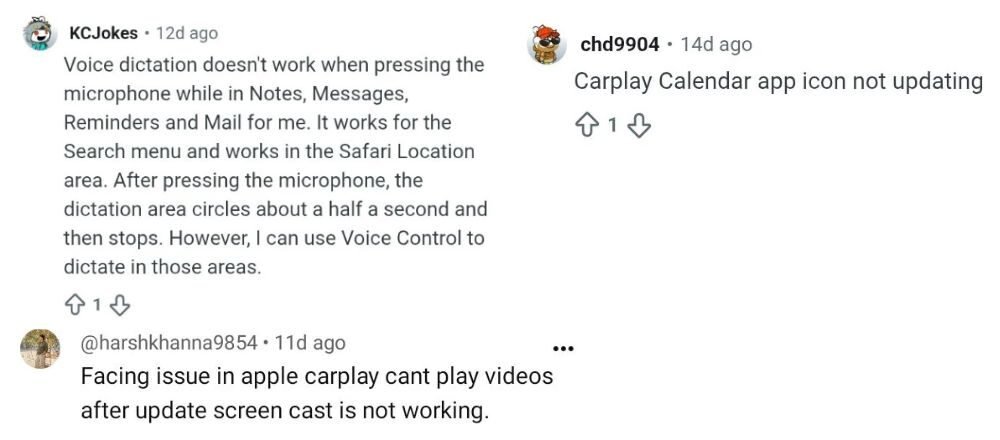
These include unstable wireless connections, broken media controls, messaging interruptions, and difficulties reconnecting the iPhone to the vehicle. Users have also reported issues with Apple CarPlay, including videos not playing properly and the Calendar icon failing to update.
If CarPlay stops working, restart your iPhone and vehicle infotainment system. You can also remove the vehicle from your CarPlay settings and establish the connection again. For wireless CarPlay, make sure Wi-Fi and Bluetooth are enabled.
10. Apps Freezing, Black Screens, and Notification Delays
Application crashes and freezing are additional concerns reported by some iOS 27.2 users. Certain applications may become unresponsive, display a black screen, or take longer than usual to open. Calendar and video-related applications have also been mentioned in user discussions.
Notification delays are another issue. Some users may not receive alerts immediately, even when notifications are enabled. These problems can be related to software compatibility, application bugs, or background processing.
Try updating your applications through the App Store. If a particular application continues to freeze, close and reopen it or reinstall it after ensuring that your important data is backed up.
iOS 27.2 Common Problems and Possible Solutions
| Reported problem | Possible troubleshooting steps |
|---|---|
| Battery drain | Allow background indexing to finish and check battery usage. |
| Overheating | Avoid intensive activities while charging and restart the device. |
| Face ID failure | Restart the iPhone and configure Face ID again if necessary. |
| Keyboard lag | Update applications and restart the device. |
| Home Screen glitches | Restart the iPhone and refresh problematic widgets. |
| Cellular problems | Toggle Airplane Mode and check carrier settings. |
| AirPlay issues | Check Wi-Fi connectivity and restart both devices. |
| Bluetooth disconnections | Forget the accessory and pair it again. |
| Photo-sharing problems | Check Photos permissions and Messages or Mail connectivity. |
| CarPlay glitches | Reconnect the vehicle and check Bluetooth and Wi-Fi. |
| App freezing | Update or reinstall the affected application. |
| Notification delays | Check notification permissions and Focus settings. |
Does iOS 27.2.1 Fix These Problems?
Apple’s maintenance updates generally focus on addressing software bugs, improving system stability, and fixing security vulnerabilities. iOS 27.2.1 focuses on critical security vulnerabilities and stability improvements. However, users should not assume that every issue reported in iOS 27.2 has been resolved.
If you are experiencing battery drain, Face ID failures, Bluetooth disconnections, AirPlay problems, or photo-sharing interruptions, check the official iOS 27.2.1 release notes to identify the fixes Apple has specifically confirmed.
A maintenance update may resolve certain problems without addressing every device-specific issue. Before installing another update, back up your important data using iCloud or a computer. Also, ensure that your iPhone has sufficient free storage and a stable internet connection.
Should You Update to iOS 27.2.1 or Wait?
If your iPhone is running iOS 27.2 and you are experiencing serious software problems, checking for the latest available maintenance update is a sensible step.
Security updates are particularly important because they help protect your personal information and device against known vulnerabilities.
However, if your iPhone is working normally, you should still review the official release notes before installing an update. This helps you understand which security and stability improvements are included.
Remember that not every iOS problem is caused by the operating system. Some issues may originate from third-party applications, network providers, or connected accessories.
Final Verdict
iOS 27.2 introduces several reported problems that can affect everyday iPhone usage, including battery drain, overheating, Face ID failures, keyboard lag, Home Screen glitches, and connectivity interruptions. Problems with AirPlay and Bluetooth, along with the inability to text or email photos from the camera, can be particularly inconvenient for users who depend on these features.
Although iOS 27.2.1 focuses on security vulnerabilities and stability improvements, it is important to verify which specific bugs Apple has confirmed as fixed. If you are experiencing serious problems, check for available software updates and follow the recommended troubleshooting steps before considering more drastic solutions.
Ultimately, a stable iPhone experience matters more than installing every update immediately. You may experience some issues after updating, while others may not affect your device. However, it is always recommended to back up your important data before installing any major software update. It is better for you.
FAQs
1. What are the most common iOS 27.2 problems?
The commonly reported problems include battery drain, overheating, Face ID failures, keyboard lag, Home Screen glitches, cellular connectivity interruptions, AirPlay and Bluetooth issues, and application freezing.
2. Why is my iPhone battery draining quickly after iOS 27.2?
Your iPhone may consume additional battery power because of background indexing, application updates, and photo-library processing. If the problem continues for several days, check battery usage and installed applications.
3. Why can’t I send photos through Messages or email after updating?
This could be related to application glitches, photo permissions, or network connectivity. Restart your iPhone, check Photos permissions, and try sharing another image.
4. Does iOS 27.2.1 fix Bluetooth and AirPlay problems?
iOS 27.2.1 focuses on security vulnerabilities and stability improvements. Check Apple’s official release notes to confirm whether specific Bluetooth or AirPlay problems are included in its fixes.
5. Should I install iOS 27.2.1?
If the update is available for your iPhone, review its security fixes and release notes. Installing security updates is generally recommended, but back up your important information before updating.